Showing posts with label Umbraco 7. Show all posts

Wednesday, November 22, 2017

Umbraco for beginners: How to see versions of a property on a page (back in history)

Introduction
All CMS systems log data versions and the person who has changed them. Umbraco is of course is  not an exception regarding this matter :)
But how can we check and see how has done the change?

There are probably some add-ins for that, but what if you don't want to let other people see old data? What if you don't have time, or not allowed to install a package on the production server?
Right?

It is pretty simple :). you just need to query on the Database


Wrong text back in history

Lets say your client sends you a bug report and when you check it you see that a text field is not correct. For the sake of example, lets say you have several email subjects in your CMS and you have a bug report saying someone has received "Subject 2" instead of  "Subject 1". What will you do?

Of course first action is to check CMS and then checking code, but what if everything is right? Isn't it possible that for a period of time an editor changed it to the wrong value and after a while corrected it? How would you check that?

A simple query like this

SELECT TOP (1000) 
    pt.Alias ,pt.Name,  cpd.dataNvarchar, cd.updateDate, u.username
--,pt.*, cpd.*, cd.*

  FROM [dbo].[cmsPropertyData] cpd
  inner join [dbo].[cmsDocument] cd on cpd.[versionId] = cd.[versionId]
  inner join [dbo].[cmsPropertyType] pt on pt.id = cpd.propertytypeid
  inner join [dbo].[umbracoUser] u on u.id =  cd.documentuser
  where 
  datanvarchar like '%Subject 2%'
With this query you will find all property names in the history that "%Subject 2%" has been assign to them with date and the one who is responsible. Also you can filter on any other fileds like nodeId (page id) and also you can check other data types (dataInt, dataDecimal, dataDate, dataNvarchar, dataNtext)


Friday, November 10, 2017

Caching partials in Umbraco 7.7

Umbraco has a nice way of implementing output caching in the views. It is exactly the same ass calling a partial, but you can say how long you want that partial to be cached and how should Umbraco understand if it should return cached data or build it again.
You could find the documentation in here.

Quick examples:

one can use CachedPartial without specifying anything else which means that you want the same partial showing every time no matter where it is.
For instance if you want to show footer or menu of your site, it is pretty easy to have them in a partial and then just call Html.CachedPartial("_menu",....) on the master page/ layout page.

  @Html.CachedPartial("_partial", Model, chachtime)//caching for everypage
On the other hand you might want to show different views for each member. An example could be a module to show username or other user specified data.
  @Html.CachedPartial("_partial", Model, chachtime,cacheByMember:true)//caching based on the member
Then there are times that you want to have your data showing differently based on different pages that they are on. For instance you want to write meta data of each page, but you don't care which user is that.
  @Html.CachedPartial("_partial", Model, chachtime,cacheByPage:true)//caching based on pages
 We can also do combination of page and members. 
  @Html.CachedPartial("_partial", Model, chachtime,cacheByPage:true,cacheByMember:true)//caching based on pages and members

But what if you want to cache your partial based on something else? What if you have some querystrings that contains some items that you want to differentiate based on that?
Lets say you have a small advertising site and for some reasons, you have your product Ids in the querystring. If you cache the page by page, it will just show everyone the first product that someone has browsed for the cache period which is not good.
Cachebymemebr is not also usable because you don't care if the person is logged in or different. You just care about the querystring that you have (productIds)
The way to do it is using contextualKeyBuilder like below: 

@Html.CachedPartial("_partial", Model, chachtime, 
contextualKeyBuilder:(o, dictionary) => 
CurrentPage.Id.ToString() + Request.QueryString.ToString())
You can specify the key based on your scenario or even pageview data.

Thursday, August 17, 2017

Forcing Umbraco install your DB again

Introduction


When you install Umbraco nuget package for the first time, it will show you a pretty installation windows and then tries to install the DB for you. What if you want to do the same when publishing your code somewhere else? What is you don't care about your site content and just want the views/ templates like for your test/staging server?


Umbraco settings


In the web config> <appSettings> of your project there is a setting that tells Umbraco which version are you on.
<add key="umbracoConfigurationStatus" value="7.6.5" />

If you remove it from the config, Umbraco has no other way than installing the DataBase again, and you will see the installation page when you try to access to the page. But wait! why doesn't it do anything?
If you take a look at the developer tools of your browser you will see that one of the requests has been failed


This is the  Error:

{"Message":"An error has occurred.","ExceptionMessage":"Invalid object name 'umbracoUser'.","ExceptionType":"System.Data.SqlClient.SqlException","StackTrace":"   at System.Data.SqlClient.SqlConnection.OnError(SqlException exception, Boolean breakConnection, Action`1 wrapCloseInAction)\r\n   at System.Data.SqlClient.TdsParser.ThrowExceptionAndWarning(TdsParserStateObject stateObj, Boolean callerHasConnectionLock, Boolean asyncClose)\r\n   at ....
So what is wrong?

Since we have set our connection string before, Umbraco thinks that there is a DB somewhere that has your User structure and tries to load your user. :)
Simply remove the Connection string and you will be fine 


Thursday, July 7, 2016

Umbraco: Adding Gibe Link Picker to Macro parameters


Gabe link picker is one of the coolest add-ons  available for Umbraco 7. By installing it, you will have the option to select a link from inside your Umbraco project, or write the URL your self for an external link/mailto. You can read more about downloading/ using it from here.

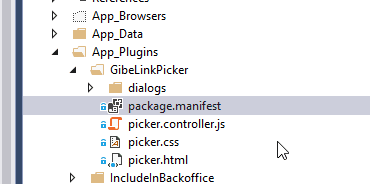
However, one might want to use the link picker as macro parameter. To do so,go to your solution-> app_plugins>GabeLinkPicker>package.manifest


and then add isParameterEditor: true to the property editor. It should look like this:

Now if you open a macro type(or create one) and go to parameters tab, link picker will be one of your options as the parameter type.


Tuesday, July 5, 2016

umbracoRedirect The great hidden Property


I had a scenario that I wanted to redirect a page to another one in my Umbraco solution. I needed my page to be in my structure, but I didn't want it to show anything and I didn't want its url to be shown on the address bar. Then my friend Niels Damkjær showed me a good hidden feature in Umbraco.

There is no need to write code or do something hard. You just need to create a new field in your document type with alias umbracoRedirect and the editor has to be Content Picker. Thats all you need to do :) Something like this:


Then in your page you can select the tab for redirecting which is very cool. 
There is also a post in our Umbraco in here but you don't need to do it with those steps.


* After adding the field for the first time, it did not work for me, but when I restart my webserver it started to work fine.

* It uses the http 302 header to tel the browser to redirect to another page which is the temporary redirect command. 

Thursday, June 30, 2016

Beginners guide to Umbraco 7: A guide for developers Part 1

Introduction

Some months ago, I've started to work with Umbraco. First I've tried to understand how it works and what do I need to know in order to implement good code with Umbraco, but actually it took more time than I've imagined.
The reason is Umbraco is very flexible which makes it easy to work for content managers, front-enders, and us (C# developers, back-enders, full-stack developers). You can easily implement lots of stuff inside Umbraco without needing any IDE and there is no need to implement a controller, service or anything. So if you are using it to implement a simple website that doesn't need that much code implementation or software structure, there is no need to read my post :)

As a developer why do I need Umbraco (or any CMS)?
If you want to develop some code on Umbraco, you probably have some user specific scenarios that you need to implement in your code and at the same time, you want to give some flexibility to the editors to use your structure and their creativity to make good content. For instance, recently I needed to create a rule engine in a project. It took me only a couple of hours to implement 4 different rule type, setting the consumers up and adding them to my pages. only 2 hours from A to Z :)

Where to start?
There are some videos in http://umbraco.tv/. Start from there and learn the structure of Umbraco and how it works. It is  Then come back and continue this post :)
You will learn:
*What is Umbraco's back office
*How to create content types
*How to create templates
*How to create content like pages
*How to set up surface controller ( a controller with access to Umbraco Stuff)
*How to set up a service

You will not learn:
*What is going on in Umbraco
*The project structures for different kind of projects
*Relating different stuff
*Working with Strongly Typed items! Yeap,

Beginners stuff in short
Installing
Creaete a new visual studio empty asp.net solution. Then go to  nuget package manager and add UmbracoCms.

This will add the Umbraco files. Now click F5 to run the project and then continue the wizard to create your stuff inside your DB. for the matter of your test project, you can go on with the DB file and when you want to publish your solution on test/production environment, you can easily set up the SQL server to use the DB like any other ASP.net project.

Umbraco Back office: 
The place that you can go and change stuff, create content type, create content and everything that is possible through a CMS.
You can go to your back office by adding an Umbraco to your sites url:
www.yoursitename.com/umbraco

Creating Content Type:
It is obvious from its name :). It is basically your model/class definition. There are 2 different types of content types,:

1- With  template: meaning that you want to show them to people like your pages.
2- Without template: when you don't want to show anything for that single item. like your settings, etc.

You can create content types by going to settings> content types and create your type. Just click on ... in front of the content types and select what you want.


Then add your fields to your type.  and click save.
For instance, let say that you want create a page to read my data from my text box in back office and write it to my start page. I will create a document type, and will call it something like "Test Doc Type".
Pay attention that Umbraco will change the alias of everything by removing the spaces and lower-casing the start character for the name.
Click on add property and then fill its name, then select the type of the box that you want to show to your user in back office (not the viewer!).  for instance you can select a rich text editor.
This will let the user to put some text with good rich text tools (tiny MCE to be more specific). you can select options and then save the form.

Editing the view 
Open your templates and find the template with the same name. (if you cannot see it, right click on the templates and click on reload).

This is your Razor View. You can do what ever you want in this view. You even don't need Visual studio to create/edit templates.

You have different option to working with views. One of them is working with "dynamic" data type in C#. Write this code inside your view and you will be fine:

@using Umbraco.Web 
@using Umbraco.Web.Mvc
@inherits UmbracoTemplatePage
@{
    Layout = null;
}

    < h1 >@(CurrentPage.YourFieldName != null ? CurrentPage.YourFieldName: "")< / h1 >
Easy right?
There is also one other way which is working with properties:
@using Umbraco.Web 
@using Umbraco.Web.Mvc
@inherits UmbracoViewPage
@{
    Layout = null;
}

   < h1 > @(Model.HasValue("YourFieldName") ? Model.GetPropertyValue("YourFieldName") : "")</ h1 >

Both codes work fine. and since there is no compilation, there is nothing that important to differentiate.
In later posts, I will show you how to work with strongly typed models inside Visual Studio (view/controller/services) but for now, set up your first page this way so you can see a sample page in Umbraco.

For additional data, you can take a look at this post by Dave Woestenborghs:
http://24days.in/umbraco/2015/strongly-typed-vs-dynamic-content-access/

Adding page to your site
Go to your content tab right click on "content" and click create to create a new page. Select your type and click create. Now give your page a title, and fill your field, then click save.
Now go to your base address to see your page.
Congratulations,  you've just created your first Umbraco site.